
PC Bottleneck Calculator: Check CPU & GPU Balance
A PC Bottleneck Calculator can give you a quick start by comparing your CPU and GPU and estimating which component is most likely to be limiting performance. Select your CPU & GPU tier and task and get the result instant.
Select your processor class or performance tier.
Select your graphics card tier.
Gaming performance can be disappointing even if your PC has a powerful graphics card. The same can happen if you have a fast processor paired with a GPU that can’t keep up. In many cases, the problem isn’t that one component is “bad.” Rather, the two components aren’t working together properly for your preferred resolution, frame rate, or games. But a calculator is only part of the solution. Actual performance also depends on resolution, game settings, RAM, thermals, background applications, drivers, and the specific game.
Here’s how to correctly use a bottleneck estimate, what the numbers mean, and what you can actually do if your CPU or GPU is holding your system back.
What is a PC bottleneck?
When one part of your computer limits the performance of the rest of the system, a bottleneck occurs. When it comes to gaming PCs, the two components that are often discussed are the CPU (processor) and the GPU (graphics card). Intel’s CPU-GPU bottleneck guide can explain how to identify these limitations. Also, explain What Is a CPU Bottleneck Complete guide.
The CPU handles tasks like game logic, physics, artificial intelligence, and prepares the graphics card for work. The GPU renders the images you see on the screen. If the CPU can’t produce frames fast enough, the GPU may have to wait. If the GPU is already running at its peak, upgrading the CPU may not provide much of an improvement in graphics-intensive games.
For example, let’s say you’re playing at 1080p resolution on a high-refresh monitor. Your graphics card may be capable of producing very high frame rates, but an older CPU may struggle to handle the workload of the game. Going to 1440p or increasing graphics settings can shift a lot of the workload to the GPU. That’s why there’s no universal “perfect” combination of CPU and GPU. Using the PC Bottleneck Calculator only for estimate the balance CPU and GPU performance.
How a PC Bottleneck Calculator Works
A simple calculator compares your chosen processor and graphics card and may consider the following factors:
- CPU and GPU performance
- Display resolution
- Gaming workload
- Relative hardware capabilities
- Expected performance limitations
You may get a result that describes the system as CPU-limited, GPU-limited, or relatively balanced.
A CPU GPU Bottleneck Calculator is useful for answering a common question: Is this hardware combination worth looking into before I buy or upgrade?
However, don’t consider a percentage to be an accurate measure of your actual FPS loss. A calculated bottleneck score is an estimate, not a lab-based measurement of your personal PC. The same hardware can behave differently in a competitive shooter, an open-world game, a simulator, and a strategy game. Your resolution and target frame rate also matter.
CPU Bottleneck vs. GPU Bottleneck
Use a PC Bottleneck Calculator, it’s more useful to understand which component is limiting performance than just looking at a percentage.
Symptoms of CPU Bottlenecks
CPU limitations can manifest themselves in the following ways:
- Low or inconsistent FPS despite a powerful GPU
- CPU usage is very high during gameplay
- Overload on one or more CPU cores
- GPU usage is lower than expected
- Poor performance at low resolutions
- Frame-time spikes in CPU-intensive games
CPU bottlenecks are especially noticeable when trying to achieve very high frame rates. For example, a system may perform well at 60 FPS but struggle to maintain 144 FPS, as the processor is under too much pressure to generate additional frames.
Symptoms of GPU bottlenecks
GPU limitations are usually easy to identify. You may see:
- GPU usage near its maximum limit during heavy scenes
- FPS increases when graphics settings or resolution are lowered
- Significant drop in performance at high resolutions
- CPU has unused capacity even when the GPU is at full load
GPU bottlenecking is not necessarily a problem. In many gaming PCs, you want the GPU to do most of the heavy lifting.
If your goal is high-quality 1440p or 4K gaming, a powerful GPU is expected to be fully utilized. Or If, upgrading your GPU increases average FPS from 80 to 100, that’s a 25% improvement. Our Percentage Calculator can help you calculate percentage increases and decreases.
Why resolution changes results
Resolution is one of the most overlooked parts of calculating bottlenecks. At 1080p, a powerful GPU can be able to render frames very quickly. Once the GPU is fast enough, the CPU can become the limiting factor, especially when aiming for high FPS.
At 1440p, the GPU has to render more pixels, so the workload is generally more heavily weighted toward the graphics card. At 4K, the graphics card is typically under a much heavier rendering workload. So, the CPU performance limitation that limits performance at 1080p may be less noticeable at higher resolutions.
This doesn’t mean that changing the resolution magically eliminates the CPU limitation. It just means that the relative workload between these two components changes. So, a PC Bottleneck Calculator best option to check the estimate your resolution should how much as per your CPU & GPU.
How to Use the PC Bottleneck Calculator
You can get more effective results by using the PC Bottleneck Calculator as a decision-making tool rather than a final decision.
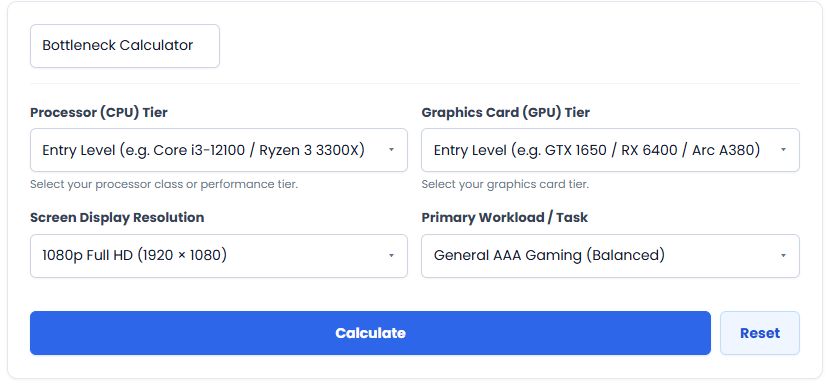
- Select your CPU. Choose the exact model of processor you have or plan to buy.
- Select your GPU. Choose the exact model rather than a similar-looking option.
- Select your resolution. Use 1080p, 1440p, 4K, or whatever resolution you play your game at.
- Consider your desired FPS & Task. The CPU needed for a 60 FPS target is different from the CPU needed for a 165 FPS target. Select the task what you want to do.
- Read the result as an estimate. Figure out what factors might be limiting you.
- Then test actual performance. Monitor CPU usage, GPU usage, temperatures, clocks, and frame times in the games you play.
The last step is important. If a calculator says your CPU is limiting performance, don’t rush into buying new hardware and see what happens.
How to Fix a CPU Bottleneck
If your system is truly CPU-dependent, you have a few options before replacing the processor.
Reduce CPU-dependent game settings
Some game settings put more strain on the processor than others. Large view distances, high object density, simulation settings, and certain crowd or world-detail options can increase the workload on the CPU. Reducing one or two CPU-dependent settings can improve frame consistency without dramatically degrading the game’s graphics.
Close unnecessary background programs
Browsers with many tabs, recording software, launchers, overlays, synchronization tools, and other applications can use CPU resources.
Closing unnecessary programs won’t make an old processor new, but it can eliminate unnecessary competition for CPU time.
Check temperatures and clock speeds
Thermal issues can slow down processor performance. If your CPU is getting unusually hot and its clock speed drops under load, the problem may be with the cooling system rather than the processor’s capabilities. Check your temperatures while gaming and make sure the cooler, fans, and airflow are working properly.
Adjust your FPS target
If you’re trying to get 200 FPS from hardware that’s designed for a more modest target, the CPU may be the limiting factor. A reasonable FPS cap can reduce the workload on the CPU and sometimes provide a smoother experience than letting the system chase the highest possible frame rate.
Upgrade the CPU
If you’re sure that the processor is consistently limiting the games you play, a CPU upgrade may be worth considering. Before you buy one, check your motherboard socket, BIOS compatibility, memory platform, cooler compatibility, and power requirements. If other platform changes are required, the fastest CPU available isn’t automatically the best upgrade.
Should you upgrade the CPU or GPU first?
Use your actual workload to answer this question or use a PC Bottleneck Calculator for acknowledge. Upgrade the CPU first when:
- Your CPU is consistently limiting FPS.
- GPU utilization is often low in performance-dependent scenes.
- You play primarily CPU-dependent games.
- You use a high-refresh monitor and want a higher minimum FPS.
- Your processor is so old that platform performance is becoming a clear limitation.
Upgrade the GPU first when:
- GPU utilization is consistently very high.
- FPS improves significantly when you lower the resolution or graphics settings.
- You want to go from 1080p to 1440p or 4K.
- Your graphics card can’t deliver the image quality or frame rate you want.
A CPU bottleneck calculator can help you identify which direction to investigate, but the final decision should be based on your actual gaming data.
What a Bottleneck Calculator Cannot Tell You
A calculator is useful, but it cannot replace real performance monitoring. It generally cannot guarantee:
- Your exact FPS in every game
- Your 1% low FPS
- Whether stuttering comes from the CPU or another problem
- Whether thermal throttling is occurring
- Whether your RAM configuration is limiting performance
- Whether a game engine has unusual CPU or GPU behavior
- Whether a driver or software problem is affecting performance
If your FPS suddenly becomes poor, do not assume the hardware pairing is responsible. Drivers, temperatures, memory pressure, background applications, game updates, and storage issues can all affect performance.
Frequently Asked Questions
Is a bottleneck bad for a gaming PC?
Not automatically. Every workload has a limiting factor. It can be normal to see the GPU almost fully utilized when playing a demanding game. The concern is whether this limitation is preventing you from achieving your desired FPS, resolution, or image quality.
Can a better GPU fix a CPU bottleneck?
Usually not. If the CPU can’t already produce frames fast enough, a faster GPU can have little impact on maximum FPS. In some cases, it can make the CPU’s limitations more pronounced.
Can more RAM reduce CPU bottlenecks?
More RAM doesn’t directly make the CPU faster. However, insufficient memory or a poor memory configuration can cause performance issues that may appear to be CPU issues. It’s a good idea to check memory usage and configuration before making major hardware replacements.
Is 10% too much of a bottleneck?
There is no universal percentage that makes a system unacceptable. The percentages in the calculator are approximate, and their meaning depends on the workload. Look at the actual FPS, frame times, utilization, and your desired performance target.
Does 1440p reduce CPU bottlenecks?
This can make CPU limitations less apparent, as the GPU typically has to do more rendering work at 1440p than at 1080p. However, the exact results depend on the game, settings, CPU, GPU, and desired frame rate.
Should I rely on a CPU GPU bottleneck calculator before buying hardware?
Use PC Bottleneck Calculator a source of information, not a final decision. Check the performance results separately for the games or applications you actually use, then consider the rest of your system and upgrade budget.
Can a bottleneck cause stuttering?
It can cause frame rate inconsistencies, but there are many possible causes of stuttering. CPU saturation, background processes, insufficient memory, shader compilation, thermal issues, driver and game-engine behavior – all of these can play a role.
Final Takeaway
A PC bottleneck calculator is most useful when it helps you ask the right question: Which component is likely to limit my desired performance?
Don’t chase a perfectly balanced percentage. Instead, match your CPU and GPU to your game, resolution, monitor refresh rate, and budget. Then validate the calculator’s estimates with actual gameplay observations. If your CPU is consistently dropping FPS, check the settings that are stressing the CPU, temperatures, background workloads, and frame-rate targets before spending any money.
The best PC upgrade isn’t the one that creates the smallest theoretical bottleneck. The best upgrade is the one that solves the performance problem you see.
Related tools
PC Wattage Calculator – Estimate Your PC Power Needs
If You want to try our other Calculator, please check. Any issue in calculator or any advice about calculator/tools, Contact Us