
Desk Fit, Multi-Monitor & Curved Display Settings
Width of your desk surface to check clearance.
Estimate combined desk span for multiple displays.
Calculates horizontal footprint reduction.
Enter required information into Monitor Size Comparison Tool and compare monitors visually. Each monitor can come from a preset or from your own custom size and aspect ratio. The tool can also check whether your monitors fit a desk you specify, work out multi-monitor setups, and account for curved panels.
About Monitor Size Comparison Tool
Monitor size is quoted as a diagonal, corner to opposite corner of the display area. It’s a convenient single number, but nobody’s desk is measured diagonally. What you live with is width and height.
Placing two monitors at the same scale turns two abstract numbers into something you can judge by eye: how much wider one is, how much taller, and how much extra screen you get. That’s the point of a visual comparison. Your brain reads shapes far faster than it compares 27 with 32.
Table of Contents
How To Use This Tool
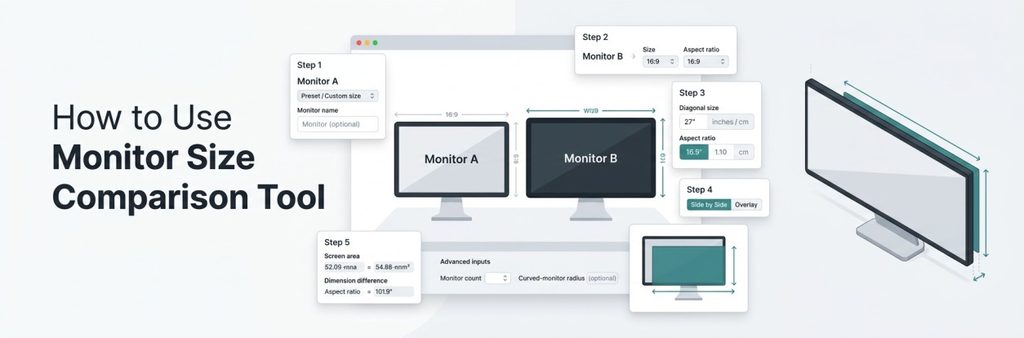
Step 1: Set up Monitor A. Choose a preset for a common size, or choose the custom option. You can give the monitor an optional name, which helps when you’re comparing specific models and want to tell them apart on screen.
Step 2: Set up Monitor B. Same choices, independent of the first. The two monitors don’t need the same aspect ratio, so you can compare a standard 16:9 panel against an ultrawide.
Step 3: Enter custom details when needed. Choosing custom reveals, the diagonal field, and you can enter it in inches or in centimeters (Metric). Pick the aspect ratio that matches your display.
Step 4: Choose a view. The comparison is available side by side or as an overlay. Side by side is good for seeing each monitor’s proportions on its own. The overlay stacks one on the other so the extra width or height sticks out and is easy to spot.
Step 5: Read the numbers. Below the visual, the text results cover the screen real estate comparison and the dimension difference between the two monitors.
Optional: use the advanced inputs. Enter your available desk width to get a desk fit assessment, such as whether the setup fits comfortably. Choose a monitor count for a multi-monitor arrangement. If a panel is curved, enter its curvature radius. That last field is optional.
Reading the visual comparison
Start with the outline. If one rectangle clearly encloses the other in the overlay, that monitor is larger in both directions. If the outlines cross, one is wider and the other is taller, which usually means the aspect ratios differ.
Then look at each dimension separately:
- Width. Usually what decides whether a monitor fits your desk, and often the most noticeable difference in daily use.
- Height. Changes more slowly than width for the same increase in diagonal, and it’s easy to underestimate.
- Proportions. A tall, squarish shape and a long, low one can share a diagonal and look very different on a desk.
- Screen area. The real estate comparison shows how much more display surface one monitor has. Because area grows with the square of the diagonal, a modest diagonal increase gives a larger area increase than you’d expect.
The visual is proportional. It’s built from the diagonal and aspect ratio you enter, so it shows relative display size, not a photograph of a particular product.
Worked example: 14-inch vs 15.6-inch
- Choose custom for Monitor A, enter 14 inches, and pick 16:9.
- Do the same for Monitor B with 15.6 inches.
- Open the overlay view. The 15.6-inch outline extends past the 14-inch one on the right and the bottom.
- Read the dimension difference: about 1.4 inches wider and 0.8 inches taller.
- Check the real estate comparison: about 24% more display area.
That’s the whole workflow. The goal is understanding the difference, not choosing a winner.
Presets or custom sizes
Presets are the fast route when you’re comparing common sizes. Custom is for anything else: a specific model with an unusual diagonal, a size given in centimeters on a spec sheet, or an aspect ratio the presets don’t cover. In custom mode, enter the diagonal in inches or cm, pick the ratio, and optionally name the monitor.
Aspect ratio changes the shape
Aspect ratio is the width-to-height relationship, such as 16:9. Two monitors with the same diagonal but different ratios have different widths, heights, and areas.
Take two 27-inch monitors:
| 27-inch monitor | Width | Height | Area |
| 16:9 | 23.5 in | 13.2 in | 311.5 sq in |
| 21:9 | 24.8 in | 10.6 in | 264.1 sq in |
Same diagonal, but the 21:9 is about 1.3 inches wider and 2.6 inches shorter, with roughly 15% less display area. That’s why the tool asks for an aspect ratio for each monitor. Check out common display aspect ratio.
Examples worth trying
24-inch vs 27-inch (16:9). The 24-inch is about 20.9 × 11.8 inches. The 27-inch is about 23.5 × 13.2 inches. That’s roughly 2.6 inches more width, 1.5 inches more height, and about 27% more display area. It’s a good example of a 3-inch diagonal difference being bigger in area terms than it sounds.
27-inch vs 32-inch (16:9). The 32-inch is about 27.9 × 15.7 inches, which is about 4.4 inches wider and 2.5 inches taller than the 27-inch, with around 40% more area. If you’re checking desk width, this is where the fit assessment matters.
14-inch vs 15.6-inch laptop. Covered in more detail below.
24-inch vs 27-inch computer monitor. Say you’re deciding between a 24-inch and a 27-inch monitor for your desk. Both are standard 16:9.
- Monitor A: choose custom, enter 24 inches, and select 16:9.
- Monitor B: choose custom, enter 27 inches, and select 16:9.
- Open the overlay view. The 27-inch outline extends past the 24-inch one on the right and at the bottom.
Monitors and curved panels
For desktop monitors, the tool goes beyond the picture. The desk fit assessment compares the monitor’s width to the desk width you enter and tells you, for example, whether it fits comfortably. With the multi-monitor option, you set the number of monitors so you can see whether the whole arrangement fits. For ultrawide, the tool provides an ultrawide productivity insight alongside the visual.
For curved monitors, enter the curvature radius and the tool works out the panel geometry. A curved display’s straight-line footprint on the desk is a little narrower than its flat width, because the panel bends inward. A result might read, for instance, that the footprint is 30.9 inches, about 1.2% narrower than the flat width. The curvature field is optional; leave it empty for a flat panel.
Laptop vs computer monitor size
Laptop and monitor sizes are quoted the same way, as a diagonal, but the physical gap is bigger than the numbers suggest. Try a 15.6-inch laptop against a 27-inch monitor, both 16:9:
The diagonal is 1.7 times longer, but the monitor has about 3 times the screen area, because area grows with the square of the diagonal. In the overlay view, the laptop screen fits inside the monitor with plenty of room to spare. This compare displays only. A laptop’s body is larger than its screen because of bezels, hinge, and keyboard, and a monitor adds a stand. Check the manufacturer’s specs if you need the full footprint.
What the tool can and can’t tell you
It can show:
- Relative size of two displays
- Width, height, and proportions
- Display area and dimension differences
- Approximate desk fit by display width
- Curved-panel footprint from the curve radius
It doesn’t determine:
- Exact device dimensions, bezel size, or stand footprint
- Mount compatibility or weight
- Resolution, refresh rate, or picture quality
- Viewing comfort or which monitor is better
Common mistakes
- Treating diagonal as width. A 27-inch monitor is not 27 inches wide.
- Ignoring aspect ratio. Same diagonal, different shape.
- Mixing up display and device size. Bezels and stands add to the outside.
- Assuming visual fit equals physical fit. Check the manufacturer’s specs before buying a desk or mount around it.
- Comparing diagonals instead of area. A small diagonal gap can be a large area gap.
How accurate is the comparison?
The result depends on what you enter: the diagonal, the aspect ratio, and the unit. Inch and centimeter entries are converted with 2.54 cm per inch. The visual is a proportionally scaled drawing of the display area, designed to make relative size clear. It is not a photograph of a real device and doesn’t include bezels or stands. If your entered diagonal and ratio match the actual panel, the display dimensions will be correct. Rounded or approximate inputs give approximate output.
FAQ
What is a monitor size comparison?
A side-by-side or overlaid view of two displays at the same physical scale, based on their diagonal and aspect ratio.
How is monitor size measured?
Diagonally, corner to opposite corner of the visible display area.
Does a 27-inch monitor measure 27 inches across?
No. The 27 inches is the diagonal. A 16:9 panel is about 23.5 inches wide.
Why do two monitors with the same diagonal look different?
Aspect ratio. A 27-inch 16:9 and a 27-inch 21:9 have different widths and heights.
Does the tool check whether a monitor fits my desk?
It compares display width to the desk width you enter. It doesn’t include bezels or stand dimensions.
Does it account for curved monitors?
Yes. Enter the curvature radius and it calculates the straight-line footprint.
Is the comparison exactly to scale?
It’s proportionally accurate for the display size you enter. It isn’t a picture of a real product.
Related tools
Screen Size Comparison for laptops, phones, tablets, and any other display
TV Size Comparison for TVs against walls and rooms
Curved Monitor Size Visualizer for curved panels