
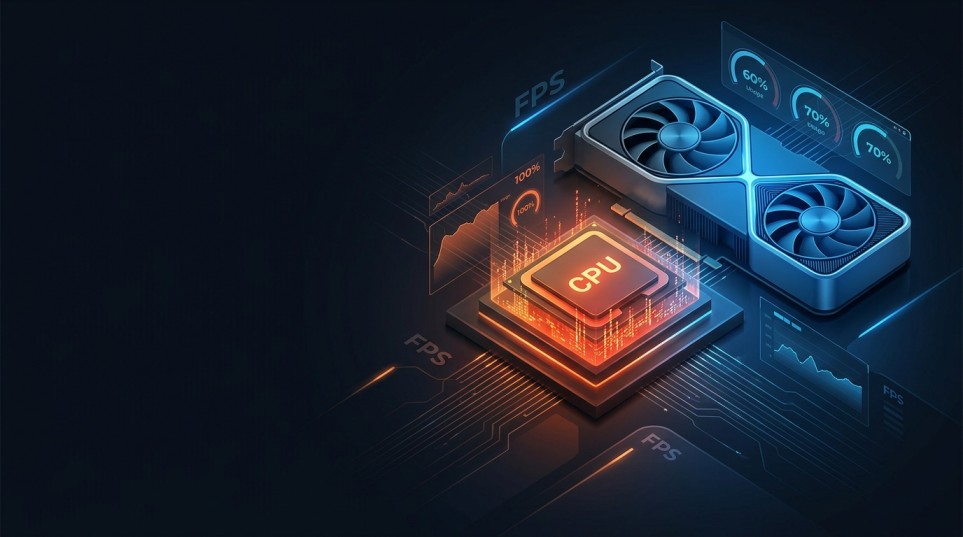
You might have a powerful graphics card, plenty of RAM, and a fast SSD, but your games could still underperform. One possible reason is a CPU bottleneck. This occurs when the processor can’t handle the amount of work the system demands, thus limiting the graphics card’s performance.
That doesn’t automatically mean there’s a problem with your PC. Every computer has a performance limit somewhere, and the limiting component can change depending on the game, application, resolution, and settings.
The useful question is not simply, “Do I have a bottleneck?” It is “Is my CPU limiting performance enough to matter?” Understanding that difference can save you money and prevent unnecessary upgrades. Calculate My PC Bottleneck Instant
Table of Contents
What Is a CPU Bottleneck?
A CPU bottleneck occurs when the processor becomes the limiting factor for a workload, preventing another component, usually the GPU, from reaching its full potential.
Think of the CPU as the part of the PC that prepares and coordinates much of the work. In a game, it handles tasks such as game logic, physics calculations, artificial intelligence, player input, background processes, and preparing commands for the graphics card.
The GPU then handles much of the visual rendering. If the CPU cannot prepare work quickly enough, the GPU may spend part of its time waiting. You might see a graphics card capable of producing more frames, but the processor prevents the system from reaching that level.
This is different from saying that your CPU is simply “too slow.” A processor can be perfectly capable for one workload and become a limitation in another. For example, a CPU might be more than adequate for gaming at 4K with demanding graphics settings but become the limiting component when running a competitive game at 1080p and trying to reach very high frame rates. You can also learn more about CPU- and GPU-boundedness in Microsoft’s DirectX documentation
Is a CPU Bottleneck Bad?
Usually, no. A bottleneck is not inherently harmful to your hardware. Your PC always has some limiting factor. Sometimes it’s the CPU; other times, the GPU. Storage speed, memory capacity, cooling, software, or even the application itself can become the limiting factor.
A CPU bottleneck becomes a problem when it prevents you from getting the performance you truly want. For example:
- If your game runs at a stable 80 FPS and you are happy with it, a CPU limitation may not matter.
- If your 240 Hz monitor is showing 110 FPS because your processor cannot deliver more frames, the limitation may be worth addressing.
- If upgrading the GPU gives almost no improvement because the CPU is already holding performance back, the imbalance becomes more significant.
- If the processor is causing severe frame-time spikes or inconsistent gameplay, the issue can affect smoothness rather than just average FPS.
So there is no universal percentage at which a bottleneck suddenly becomes “bad.” Your target performance matters more than a single number. Decide before CPU bottlenecks go bad, learn the complete guide on how to test CPU and GPU bottlenecks.
How Can You Tell If Your CPU Is the Problem?
The most useful approach is to monitor what your hardware is actually doing while you use the PC.
Suppose you are playing a game and notice that your GPU utilization stays around 60–70% while one or more CPU cores are heavily loaded. Lowering the game’s resolution also produces little improvement in FPS. That is a strong sign that the processor may be limiting the frame rate.
A GPU bottleneck usually looks different. If the graphics card is running close to full utilization and lowering resolution or graphics quality significantly increases FPS, the GPU is more likely to be the limiting component. CPU bottlenecks can also show up as:
- Low or inconsistent GPU utilization during gameplay
- High CPU usage in demanding games
- Poor performance at low resolutions
- Little FPS improvement after reducing graphics settings
- Significant frame-time spikes
- Better performance after reducing CPU-heavy settings such as crowd density or simulation quality
Be careful with overall CPU utilization, though. A processor showing 50% total usage can still be limiting performance if a game is heavily dependent on a few CPU cores.
How to Identify CPU Vs GPU Bottleneck in Your PC
A CPU bottleneck and a GPU bottleneck are not automatically good or bad. They simply describe different performance limits.
| Situation | Likely Limitation | What You May Notice |
| CPU near its practical limit, GPU not fully utilized | CPU | FPS does not rise much when lowering resolution |
| GPU near full utilization | GPU | Lowering resolution or graphics settings increases FPS |
| Both heavily loaded | Workload-dependent | Performance may be balanced |
| Neither is consistently maxed | Software or another factor | Background tasks, game engine, memory, thermals, or frame cap may matter |
A GPU running at 95–100% in a demanding game is not necessarily a problem. In many cases, that is exactly what you want because the graphics card is being fully used.
Likewise, high CPU utilization does not automatically mean the processor is overheating or failing. The goal is not to make every component show a particular utilization percentage. The goal is to determine whether the current performance meets your needs.
Should You Use a CPU Bottleneck Calculator?
A CPU bottleneck calculator can be useful as a rough planning tool, especially when you are comparing a processor and graphics card before buying or upgrading.
These calculators typically ask for hardware information such as:
- CPU model
- GPU model
- Resolution
- Sometimes the type of workload or games
They then provide an estimated bottleneck percentage or category. The problem is that a single percentage can create a false sense of precision.
There is no universal bottleneck number that applies equally to every game. A strategy game with complex simulation can place very different demands on the CPU than a visually intensive single-player game. The same CPU/GPU combination can behave differently at 1080p and 4K.
Use a CPU bottleneck calculator to spot potential mismatches, not to decide whether your PC is objectively “good” or “bad.”
What About a CPU GPU Bottleneck Calculator?
A CPU GPU bottleneck calculator can be helpful when planning a new build. It gives you a quick way to compare the relative capabilities of two major components before spending money. For example, if you are choosing between two CPUs for a high-end graphics card, a calculator might indicate that one processor is more likely to limit performance at your selected resolution. But treat the result as an estimate rather than a benchmark.
Real-world performance depends on factors that calculators may not fully capture, including game engines, CPU architecture, cache design, memory configuration, background processes, driver behavior, cooling, power limits, and frame-rate targets.
A calculator can answer, “Does this pairing deserve a closer look?”
It cannot reliably answer, “Exactly how many FPS will I get in every game?”
How to Check for a Bottleneck Yourself
A practical PC bottleneck checker is often more useful than a generic percentage because it lets you examine what your own computer is doing. Start with one game or application where you are experiencing poor performance.
- Record your current FPS. Look at average performance and, if possible, low frame rates such as 1% lows.
- Monitor CPU usage. Check individual core or thread activity rather than relying only on total CPU usage.
- Monitor GPU utilization. See whether the graphics card is consistently working near its practical limit.
- Change the resolution. Try a lower resolution without changing other settings.
- Compare performance. If FPS barely changes at a much lower resolution, the CPU or another non-GPU limitation may be involved.
- Check temperatures and clocks. Thermal throttling can make a CPU appear weaker than it should be.
- Look for frame caps. V-Sync, an in-game FPS limit, or a driver setting can prevent higher frame rates even when hardware has more capacity.
This approach gives you evidence from your actual PC instead of relying entirely on an estimated score.
What If Your CPU Is Bottlenecking Your GPU?
You do not necessarily need to replace the CPU. First, decide whether the limitation affects your normal use. If you play at 60 FPS on a 60 Hz display and the system already delivers that consistently, chasing additional CPU performance may provide little practical benefit.
If you want higher frame rates, you have several options. You can lower CPU-heavy game settings, close unnecessary background applications, update software, improve cooling if temperatures are causing throttling, or adjust your performance target.
A CPU upgrade makes more sense when the processor consistently prevents the performance level you want and other parts of the system are already capable of delivering it.
For a new build, it is also worth considering the complete platform. A newer CPU may require a different motherboard or memory, so the real upgrade cost can be larger than the processor’s price alone.
Common Bottleneck Mistakes
One of the biggest mistakes is assuming that the GPU should always be at 100% utilization. That’s not a universal rule. Another mistake is treating a calculator’s percentage as a measurement of real-world performance. An estimated 20% or 30% figure does not mean you will lose exactly that percentage of FPS.
It is also easy to blame the CPU when the real issue is something else. Check for:
- Thermal throttling
- Insufficient RAM capacity
- Slow or misconfigured memory
- Background applications
- Power-saving settings
- Game-specific optimization problems
- FPS limits
- Driver issues
- Storage-related loading problems
- Streaming or recording software
FAQ
Can a CPU bottleneck damage the CPU or GPU?
No. A normal CPU bottleneck is a performance limitation, not a form of hardware damage. Modern components are designed to operate under heavy workloads within their specified limits.
Is 100% CPU usage always a bottleneck?
No. High CPU usage simply means the processor is busy. It becomes a bottleneck when that workload prevents the performance you want, such as limiting FPS or causing poor frame-time consistency.
Is 100% GPU usage bad?
Not by itself. A GPU running near full utilization during a demanding game is often normal. Temperature, stability, and clock behavior are more useful indicators of whether the graphics card is operating properly.
Can a powerful GPU be bottlenecked by a cheap CPU?
Yes, particularly at lower resolutions and high frame rates. The size of the limitation depends on the specific CPU, GPU, game, settings, and performance target.
Should I trust a bottleneck calculator?
Use one as a rough estimate, not as a final verdict. Actual monitoring and benchmarks from your workload provide better evidence.
Does more RAM fix a CPU bottleneck?
Usually not directly. Adding RAM can solve memory-capacity problems or improve performance in systems with insufficient memory, but it does not turn a processor with limited CPU performance into a faster CPU.
Can overclocking fix a CPU bottleneck?
Sometimes it can improve performance, but the gain depends on the processor, platform, cooling, and workload. It is not a guaranteed solution, and modern CPUs may already operate close to their intended performance limits.
Conclusion
A CPU bottleneck is simply a situation where the processor limits performance before another component, such as the GPU, reaches its full potential. This isn’t necessarily a bad thing, nor does it mean your PC is faulty.
The real issue is whether the bottleneck interferes with what you want your computer to do.
Use calculators to make rough hardware planning decisions, but rely on actual CPU and GPU monitoring when diagnosing your current system. Analyze resolution, frame rate targets, individual CPU activity, GPU utilization, temperatures, and frame rate behavior together. If your PC already delivers the experience you want, there’s no reason to seek a perfectly balanced utilization chart. If performance is below expectations, first identify the limiting component and upgrade only when there’s evidence that this component is indeed limiting your performance.