
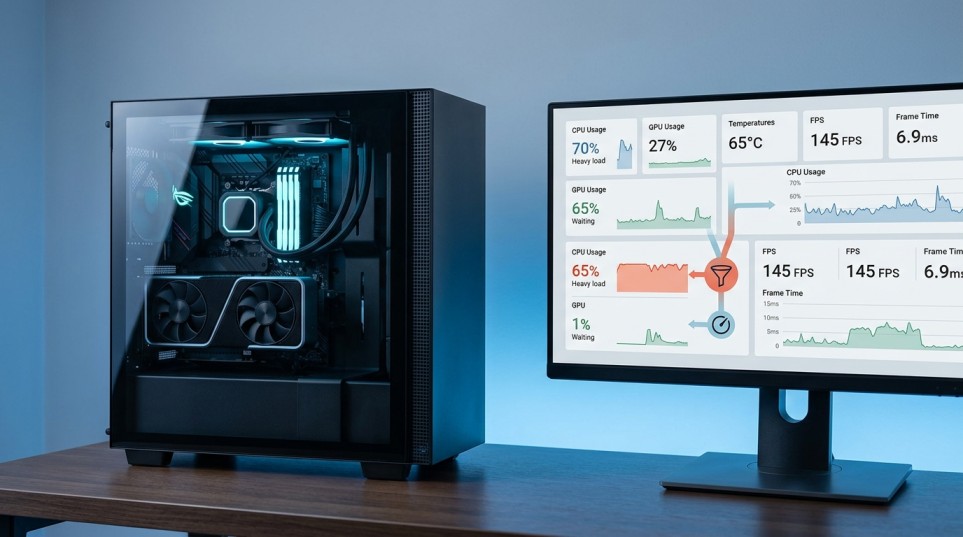
A new graphics card or processor can look like a major upgrade on paper, yet your games may not run much faster. One common reason is a bottleneck: a component is limiting how quickly the rest of your PC can work. A bottleneck test can help you find out whether your CPU, GPU, RAM, or another part of the system is holding back performance. Check My PC Bottleneck instant
The tricky part is that there’s no single number that explains everything. A PC might have CPU limitations in one game and GPU limitations in another. Resolution, graphics settings, target frame rate, and even the game engine can all influence the outcome. Here’s how to properly check for a PC bottleneck, how to use a bottleneck analysis tool without taking the results literally, and what to do when the hardware is truly limiting performance.
Table of Contents
How to Test a PC Bottleneck
The most reliable approach is to observe your PC while doing the task that causes the problem. A benchmark number or online calculator can provide a starting point, but real workload data is much more useful.
1. Choose a repeatable workload
Start with the game or application where you notice poor performance. For gaming, pick a demanding scene that you can reproduce. Ideally, use the same:
- Game
- Resolution
- Graphics preset
- Upscaling setting
- Frame-rate target
- Location or benchmark sequence
This matters because changing several settings at once makes it difficult to identify the cause.
2. Monitor CPU and GPU usage
Run the game and observe your CPU and GPU behavior using a reliable hardware monitoring tool or performance overlay. Don’t focus on a single moment. Observe what happens over several minutes, especially during the parts of the game where performance drops.
A pattern such as this can indicate a GPU limit:
- GPU usage stays very high.
- GPU clocks remain appropriate for the workload.
- CPU usage is not consistently maxed out.
- Lowering graphics settings or resolution increases FPS.
A CPU limitation may look different:
- GPU usage repeatedly falls below its potential.
- One or more CPU cores are heavily loaded.
- Frame rates remain similar after lowering resolution.
- Increasing CPU performance or reducing CPU-heavy settings improves FPS.
Total CPU usage can be misleading. A game may heavily use a few CPU cores while overall CPU usage appears moderate. That is why per-core or per-thread information can be more useful than the overall percentage.
3. Change resolution as a diagnostic test
This is one of the simplest ways to investigate a suspected GPU limit. Suppose a game runs at 70 FPS at 1440p. Lower the resolution to 1080p while keeping other settings similar. If FPS rises significantly, the GPU was probably doing a large share of the limiting work. If FPS barely changes, the processor or another system limitation may be restricting the frame rate. This is not a perfect test, but it is a useful clue.
4. Compare CPU-heavy and GPU-heavy settings
Individual graphics settings can affect different parts of the system. Settings such as crowd density, simulation detail, view distance, and some physics effects can place substantial work on the CPU. Resolution, ray tracing, shadows, and other visual effects often put more pressure on the GPU.
Change one setting at a time and watch the frame rate and hardware utilization. This can reveal what is actually limiting the game instead of simply telling you that “the PC has a bottleneck.”
What a CPU GPU Bottleneck Test Can Tell You
A CPU GPU bottleneck test is most useful when it compares how the processor and graphics card behave under the same workload. Imagine you have a powerful GPU paired with an older CPU. At 1080p with a high refresh rate monitor, the CPU might struggle to keep the graphics card busy. However, at 4K, the GPU could become the main bottleneck.
That means the same PC does not have one permanent bottleneck percentage. The result depends on:
- Resolution
- Refresh rate
- Game or application
- Graphics settings
- CPU-heavy game mechanics
- GPU-heavy visual effects
- Background processes
- Frame-rate target
This is why statements such as “this CPU and GPU have a 20% bottleneck” should be treated cautiously. A real system does not behave according to one universal percentage.
Should You Use a Bottleneck Checker?
An online bottleneck checker can be useful for a quick hardware pairing estimate. You enter your CPU, GPU, RAM, resolution, or other details, and the tool gives you an estimate of which component may limit performance. That can be helpful before buying parts. For example, if you are considering a new graphics card for an older computer, a calculator may flag the processor as a potential limitation. That gives you a reason to investigate the pairing more closely.
But the result should be treated as a rough estimate, not a measurement of your actual PC. A calculator generally cannot fully account for every game, workload, driver version, background task, cooling condition, graphics setting, or frame-rate target. For an existing PC, monitoring actual performance is usually more informative.
Are PC Bottleneck Calculators Accurate?
Not consistently enough to use them as the final word. PC bottleneck calculators can be useful for identifying possible mismatches, but their percentage scores can create a false sense of precision. A result such as “15% bottleneck” sounds exact even though real-world performance can vary substantially between applications.
A calculator may be reasonable for:
- Getting a quick second opinion
- Comparing a proposed CPU and GPU combination
- Finding obviously unbalanced hardware
- Starting research before an upgrade
It is less suitable for:
- Diagnosing stuttering
- Determining the cause of poor 1% lows
- Measuring thermal throttling
- Identifying background software problems
- Predicting performance in every game
- Deciding whether an upgrade is worthwhile by percentage alone
The best approach is to use the calculator as a screening tool, then confirm the result with real performance data.
Signs Your CPU Is the Bottleneck
A processor limitation often becomes noticeable when you are trying to achieve a high frame rate. You may see:
- GPU usage repeatedly dropping while the CPU is busy.
- FPS staying similar when you lower resolution.
- Poorer performance in large multiplayer matches or busy scenes.
- Better performance after reducing CPU-heavy settings.
- Strong average FPS but disappointing 1% lows in CPU-heavy games.
A useful clue is consistency. If your GPU is capable of much more but repeatedly waits for the CPU, upgrading the graphics card alone may provide little benefit. Before upgrading you should know what is CPU and it is bad for your PC?
Signs Your GPU Is the Bottleneck
A graphics card limitation is common at higher resolutions and demanding visual settings. Look for:
- GPU usage remaining very high during the performance problem.
- FPS increasing when you lower resolution.
- A large performance improvement after reducing GPU-heavy settings.
- CPU usage that does not appear to be preventing the GPU from staying busy.
A GPU bottleneck is often perfectly normal. In fact, if you want maximum visual quality, having the GPU be the limiting component can be exactly what you expect. If your question is, ‘How to fix performance problems?’, then check out Microsoft’s Tips for improving PC performance.
Don’t Confuse a Bottleneck with a Hardware Problem
Poor performance does not always mean that your CPU and GPU are badly matched.
For example, sudden FPS drops could result from:
- Excessive CPU or GPU temperatures
- Thermal throttling
- Outdated or problematic drivers
- Too many background applications
- Insufficient RAM
- VRAM limits
- Power-management settings
- Game-specific optimization problems
- Shader compilation or asset streaming
- A poorly configured system
Before buying new hardware, check the temperature, clock speed, memory usage, and frame rate. And more importantly, manage the PC power supply according to the hardware. This you can easily estimate using PC Wattage Calculator. And Frame rate graphs are especially useful for detecting stuttering. The average FPS alone can mask brief but noticeable pauses.
A Better Way to Read Bottleneck Results
Instead of asking, “What is my bottleneck percentage?” ask three more useful questions: What component is limiting performance right now?
Look at utilization, clocks, temperatures, memory usage, and frame times during the actual workload.
Can I change the workload and remove the limitation?
Lower the resolution to test GPU pressure. Reduce CPU-heavy settings to test processor pressure. Try another game to see whether the behavior is consistent.
Does the limitation matter for what I want to do?
A CPU limitation at 200 FPS may not matter if your monitor runs at 120 Hz. Likewise, a GPU limitation at 60 FPS may be acceptable if you are happy with that frame rate. The goal is not to eliminate every bottleneck. The goal is to avoid paying for hardware that cannot provide a meaningful improvement for your use case.
Common Bottleneck Testing Mistakes
One of the biggest mistakes is looking only at overall CPU usage. A game can be CPU-limited even when the total processor percentage looks relatively low because the workload is concentrated on particular cores.
Another common mistake is testing with only one game. Different graphics engines place different demands on the hardware. A processor that limits the performance of one title might be more than sufficient for another. It’s also easy to mistake high GPU usage for a problem. If the GPU is running at nearly its maximum capacity and delivering the desired frame rate, there’s not necessarily a problem to fix.
Finally, avoid making upgrade decisions from a calculator percentage alone. Compare the actual performance improvement you expect with the cost of the upgrade.
Frequently Asked Questions
Can every PC have a bottleneck?
Yes. Every workload has some limiting resource. The presence of a bottleneck does not mean something is wrong. The question is whether the limitation is hurting the performance you want.
Is 100% GPU usage bad?
No. High GPU usage is normal during demanding games. If the GPU is near full load and temperatures and clocks are healthy, it may simply mean the graphics card is doing its job.
Can a CPU bottleneck cause stuttering?
It can. A processor that struggles with game logic, simulation, or frame preparation can contribute to inconsistent frame times. However, stuttering can have many other causes, so CPU usage should be checked alongside frame-time and system data.
Does more RAM fix a CPU bottleneck?
Usually not. Adding RAM does not directly make a processor faster. More memory can help when the system does not have enough RAM or when memory related limitations are affecting performance.
Does increasing resolution reduce a CPU bottleneck?
It can make the GPU the stronger limitation, but it does not make the CPU itself faster. If the CPU was limiting your frame rate at a lower resolution, increasing resolution may simply shift more of the workload to the GPU.
Should I trust a bottleneck calculator before buying a GPU?
Use it as an early warning tool, not as the final decision-maker. Check real benchmarks for the games and resolution you care about, and consider your target FPS and monitor refresh rate.
What is the easiest way to check bottleneck on PC?
Monitor CPU and GPU utilization while running the game or application that causes problems. Then change resolution and relevant settings one at a time. The way performance changes will often reveal which component is limiting you.
Before Use Bottleneck Checker
A bottleneck test is most useful when it answers a practical question: What is stopping my PC from delivering the performance I want?
Online calculators can help you spot potentially mismatched hardware, but they cannot reproduce every real-world workload. For an existing system, monitor CPU and GPU behavior, check temperatures and clocks, compare frame rates at different resolutions, and test more than one workload when possible.
Once you know what’s truly limiting performance, the decision to upgrade will be much simpler. You might need a faster CPU or GPU, or you might discover that your hardware is working correctly and the real problem lies in a setting, temperature, driver, memory limitation, or a specific application issue.
If you would like to know more about us and our calculators, please contact us.