
The Curved Monitor Size Visualizer puts two monitors next to each other at true physical scale, including their curve. Enter a screen size, an aspect ratio, and a curvature for Monitor A and Monitor B. The tool draws a top view of both panels so you can see how wide they are, how far they wrap toward you, and how they compare in height and screen area.
About Curved Monitor Size Visualizer
It is most useful before a purchase. A 34-inch ultrawide and a 32-inch 16:9 monitor look similar in a product listing. On a desk they are very different objects. Spec sheets give you diagonals and an “R” number, and this tool turns those into shapes you can judge by eye.
Before you start, have three details per monitor: the diagonal size, the aspect ratio, and the curvature rating (for example 1000R or 1800R). All three are on the manufacturer’s spec page.
Table of Contents
How to Use This Size Visualizer
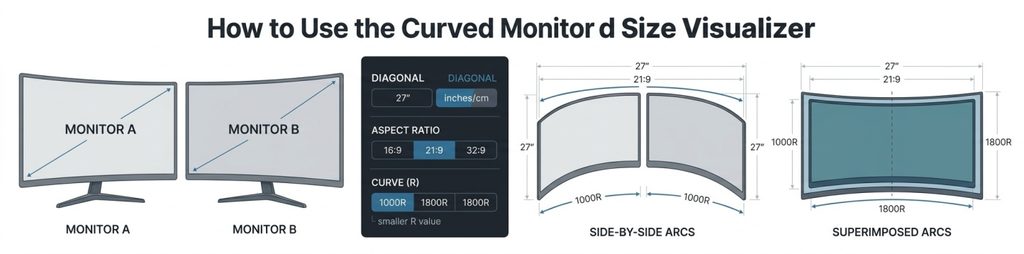
- Enter Monitor A’s screen size. This is the diagonal, corner to corner, as advertised. Choose inches or centimeters first. A 27-inch monitor is about 68.6 cm, so entering 27 while the tool is set to centimeters will draw a much smaller screen than you intended.
- Set Monitor A’s aspect ratio. Common values are 16:9, 21:9 and 32:9. Use the ratio in the spec sheet, not the resolution. Some monitors sold as “21:9” are actually 43:18 (3440 × 1440), which is slightly wider. If the exact ratio is listed, use that.
- Enter Monitor A’s curve in millimeters. Screen Curve (R) is the radius of the circle the screen would form if the curve continued all the way around. Enter 1000 for a 1000R monitor and 1800 for an 1800R monitor. A smaller number means a tighter curve.
- Repeat for Monitor B. Use the monitor you own as A and the one you’re considering as B, or compare two candidates.
- Switch between the two views. Side-by-Side Arcs shows each monitor on its own, which is best for judging how deeply each one wraps. Superimposed Arcs stacks them on a shared centerline, which is best for seeing exactly where one is wider than the other.
The most common slip is entering the panel’s flat width where the diagonal belongs, or the other way around. If a drawn monitor looks far too big or too small, check the unit toggle first.
Reading the Visual
The top view looks down on the monitor from above, so the screen appears as an arc. You can read three things from it.
Width across the arc. This is how much horizontal screen you get. When two arcs are superimposed, the wider one extends past the other on both sides, and the difference shows how much extra room to the left and right you’d need.
Depth of the curve. The gap between the arc’s center and the line connecting its two edges shows how far the sides wrap toward you. A deeper arc means a tighter curve or a wider screen. Depth matters for your desk because the edges of a curved monitor sit closer to you than the middle does, and the stand adds its own depth on top.
Height and aspect ratio. The top view can’t show height directly, so the tool reports it in the comparison. This is where ultrawide surprise people. A 34-inch 21:9 monitor is barely taller than a 27-inch 16:9 one. The 34-inch is wider, not taller.
The comparison also reports screen area, which is width times height. Area is a fair way to compare screens of different shapes, because a diagonal alone can’t. Two monitors with the same diagonal can have very different areas if their ratios differ.
What Sizes Do Curved Monitors Come In?
Curved monitors come in roughly three shape families:
- 16:9 monitors, usually 24 to 32 inches, with a few larger panels.
- 21:9-class ultrawide, usually 29, 34, 38, 40 or 45 inches.
- 32:9 super ultrawide, usually 49 and 57 inches.
Curvature also varies. Ratings such as 1000R, 1500R, 1800R, 3800R and 4000R are common in listings, and a few large ultrawide go tighter still. Because sizes and curves vary by model, check the exact spec for the monitor you’re considering.
The Geometry Behind the Arcs
The visualizer draws the screen from three relationships. First, the dimensions of a flat rectangle with a given diagonal and aspect ratio (ratio a:b):
Width = Diagonal × a ÷ √(a² + b²)
Height = Diagonal × b ÷ √(a² + b²)
Then, for the curve, treating the screen’s width as a length measured along the arc:
Angle (radians): θ = Width ÷ R
Straight-line width: c = 2R × sin(θ ÷ 2)
Curve depth: d = R × (1 − cos(θ ÷ 2))
Where:
- Width = screen width along the surface of the panel
- R = curve radius, with width and R in the same unit
- θ = the angle the screen spans around the imaginary circle
- c = the straight-line distance between the screen’s left and right edges
- d = how far the middle of the screen sits behind the line joining its edges
These formulas assume the monitor’s curve is a single smooth circular arc. A few panels use slightly different curve profiles, and manufacturers don’t always publish enough detail to model them.
Check the Visual with Numbers
Say you are comparing a 27-inch 16:9 monitor rated 1500R with a 34-inch 21:9 monitor rated 1800R.
Monitor A: 27″, 16:9, 1500R
- Width = 27 × 16 ÷ √337 = 27 × 16 ÷ 18.358 ≈ 23.53″ (597.7 mm)
- Height = 27 × 9 ÷ 18.358 ≈ 13.24″
- θ = 597.7 ÷ 1500 ≈ 0.398 rad, or about 22.8°
- c = 2 × 1500 × sin(0.199) ≈ 593.8 mm ≈ 23.38″
- d = 1500 × (1 − cos(0.199)) ≈ 29.7 mm ≈ 1.17″
Monitor B: 34″, 21:9, 1800R
- Width = 34 × 21 ÷ √522 = 34 × 21 ÷ 22.847 ≈ 31.25″ (793.8 mm)
- Height = 34 × 9 ÷ 22.847 ≈ 13.39″
- θ = 793.8 ÷ 1800 ≈ 0.441 rad, or about 25.3°
- c = 2 × 1800 × sin(0.2205) ≈ 787.4 mm ≈ 31.00″
- d = 1800 × (1 − cos(0.2205)) ≈ 43.6 mm ≈ 1.72″
What the comparison should show:
| Comparison | Monitor A | Monitor B | Difference |
| Screen width | 23.53″ | 31.25″ | +7.72″ |
| Screen height | 13.24″ | 13.39″ | +0.16″ |
| Screen area | 311.5 sq in | 418.6 sq in | +107.1 sq in (about 34% more) |
| Straight-line width | 23.38″ | 31.00″ | +7.62″ |
| Curve depth | 1.17″ | 1.72″ | +0.55″ |
If the visualizer’s numbers land within a rounding difference of these, it’s drawing what you expect. In plain terms, the 34-inch ultrawide gives you about a third more screen area, almost entirely as extra width. It is virtually the same height as the 27-inch monitor, and it needs about 7.6 inches more of desk width.
What R Means, and What 1000R Looks Like
The “R” is a radius in millimeters. A 1000R monitor curves as if it were a slice of a circle with a radius of 1000 mm, or about 39.4 inches. An 1800R monitor is a slice of a larger circle with a radius of about 70.9 inches, which makes it flatter. Curvature ratings are often explained as a match to viewing distance. A 1000R screen is built around someone sitting roughly a meter away, with the eyes near the center of that imaginary circle. That describes the design intent. It isn’t a rule, and comfortable distance depends on screen size, your eyesight and what you do on the screen.
For general comfort, OSHA recommends keeping the screen roughly 20 to 40 inches from your eyes, so check your desk depth against the arc depth the visualizer shows. Check out the OSHA’s guidance on monitor placement and viewing distance.
Why the Curve Number Changes the Picture
Two monitors of the same size and ratio can have very different shapes. Take a 49-inch 32:9 monitor, whose screen width is about 47.17 inches:
- At 1000R, the straight-line width is about 44.40″ and the curve depth about 6.86″.
- At 1800R, the straight-line width is about 46.30″ and the curve depth about 3.89″.
That’s the same screen, but the tighter curve pulls each edge nearly 3 inches further toward you and shortens the straight-line span by about 1.9 inches. If you’re searching for a 1000R curved monitor, the arcs will show you how much more it wraps than an 1800R model. Whether that suits you depends on your desk depth and how far you sit from the screen.
Common Situations Where the Visualizer Helps
Checking desk fit. Compare the straight-line width and the arc depth to your desk. A desk 30 inches deep can be tight for a wide, tightly curved panel once you allow for stand depth and a comfortable seating distance.
Replacing a flat monitor with an ultrawide. Put your current monitor in as A, the ultrawide as B, and use Superimposed Arcs to see how much wider the new screen is and whether it stays about as tall.
Choosing between two curve ratings. Enter the same size and ratio for both, change only R, and compare the arcs.
Planning a dual-monitor setup. Two arcs side by side show whether your combined width fits, which the size chart above can’t tell you.
Common Mistakes
- Wrong unit. The screen size can be entered in inches or centimeters, but R is in millimeters. Mixing them up is the most common way to get an odd-looking arc.
- Confusing 1000R with 1000 mm of depth. The 1000 is the radius of the circle. The actual depth of the screen is much smaller, as the examples above show.
- Assuming a bigger diagonal means a taller screen. On ultrawides it usually doesn’t.
- Using resolution as aspect ratio. 3440 × 1440 is close to 21:9 but is really 43:18. The difference is small, but a precise comparison should use the exact ratio.
- Forgetting the bezel and stand. The drawing shows the screen, not the hardware around it.
Accuracy, Assumptions, and Limitations
The visualizer produces a scale drawing based on geometry, not a measurement of a real product. A few things affect how closely it matches what arrives in the box.
- Diagonal conventions. The tool assumes the screen size is the measurement along the surface of the panel. Manufacturers don’t all state this. If a brand measures a straight line instead, the real screen will be very slightly narrower than drawn.
- Rounding. Advertised diagonals are rounded, for example 34″ for a panel that may be 34.2″ or 33.9″. Curve ratings are nominal too.
- Screen only. Bezels, stand footprint, and any built-in speakers or ports aren’t modeled. Check the manufacturer’s stated dimensions for overall width and depth.
- A single circular arc. Real curved panels can deviate slightly from a perfect circle.
- Comfort isn’t calculated. The tool shows shape and size. It doesn’t judge viewing distance, glare, or whether a curve will feel right to you.
For the exact numbers, the manufacturer’s dimensions listed with the monitor are the authority.
Frequently Asked Questions
What sizes do curved monitors come in?
Mostly 24 to 32 inches at 16:9, 29 to 45 inches at 21:9, and 49 to 57 inches at 32:9. See the size chart above for widths and heights.
What does 1000R mean on a curved monitor?
The screen follows a circle with a radius of 1000 mm, about 39.4 inches. It is a tighter curve than 1500R or 1800R.
Is a lower R number more curved?
Yes. A smaller radius means a tighter circle, so 1000R curves more than 1800R.
Does a curved monitor need more desk space than a flat one?
It needs somewhat more depth, because the edges wrap toward you. Its straight-line width is also a little less than the flat-screen width.
Why does my monitor’s real width differ from the visualizer’s?
The tool draws the screen only. Bezels add width, and manufacturers round diagonals and ratios.
Related Tools
If you want to compare flat and curved displays with a desk-fit check, use the Monitor Size Comparison tool. For laptops, tablets or phones alongside monitors, try the Screen Size Comparison tool. If you’re deciding how a TV compares with a monitor’s footprint, the TV Size Comparison tool covers larger screens. With the visualizer, two spec sheets become two shapes on the same page, and you can see whether a monitor fits before you buy it.
For More tools check out Size & Comparison Category.